To delete a saved resume from LinkedIn, open Jobs → Preferences → Resumes and application data, open the menu beside the file, and select Delete. A resume displayed on your profile is a separate copy: remove that item from Featured as well if you no longer want profile visitors to see it.
If you are deleting an old file to replace it with an updated resume, Wobo's resume builder helps you prepare the replacement: update your experience, preview the document, and download a fresh PDF. Wobo's free plan includes unlimited PDF exports and AI credits for improving resume content, with an upgrade available for unlimited AI use.
The important distinction is where the file lives. Cleaning up a saved upload does not recall a resume already sent to an employer or remove a document you published elsewhere.
Reviewed October 28, 2026 against LinkedIn's public Help documentation. Menu labels can differ by app version and account.
Which LinkedIn resume are you trying to remove?
Use this checklist before deleting anything. It separates the places that are easy to confuse:
| Where you see it | What to manage | What that action does not do |
|---|---|---|
| A file offered during a new job application | Your saved resumes in application settings | Change an application you already submitted |
| A document card on your profile | The uploaded media in Featured | Remove a separate saved application resume |
| A post containing your resume, pinned to Featured | The Featured item and, if necessary, the original post | Unpinning alone does not delete the post |
| A preference about sharing resume data with recruiters | The resume-sharing switch | Delete the saved file or a profile attachment |
| An attachment in a past application | The employer's application process or contact | Deleting your saved LinkedIn copy does not retract the submitted version |
LinkedIn distinguishes application uploads from profile uploads, and its Featured FAQ distinguishes removing a featured item from deleting its content.
Delete an old resume saved for job applications
- Sign in to your own LinkedIn account and open Job Application Settings. Alternatively, choose Jobs, then Preferences, then Resumes and application data.
- Check the filename and upload date so you select the old version. Keep a local backup of anything you still need.
- Open the three-dot menu beside that resume and choose Delete. Complete any confirmation shown.
- Reopen the saved-resume list and check that the unwanted filename is gone. If replacing it, upload your current document and check that filename too.
This route comes from LinkedIn's resume management instructions. You do not need to submit a job application just to clean up the list.
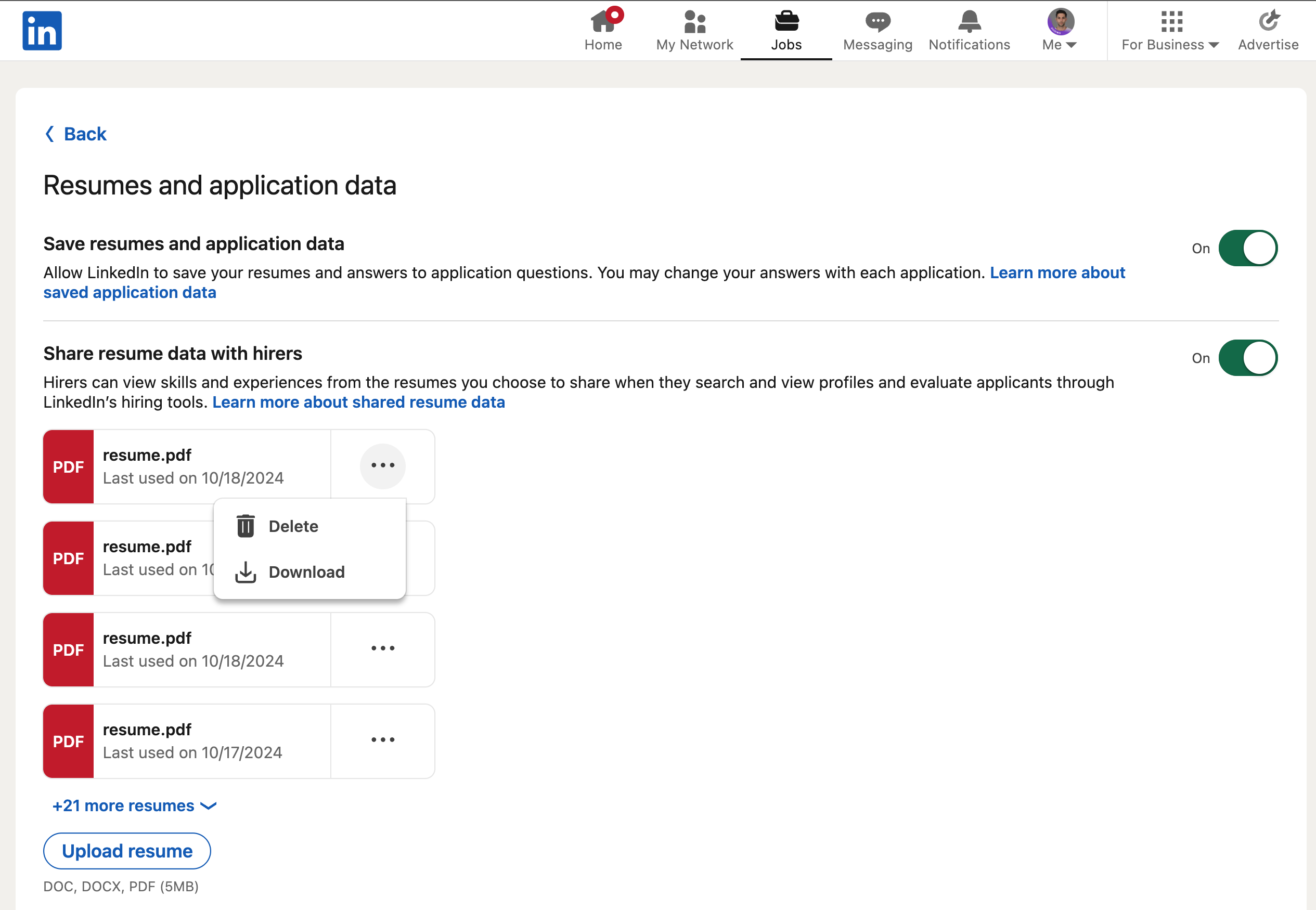
Historical interface example showing resume dates from October 2024: Delete appears in the menu beside a saved file. This is an older screenshot, not a current account test; labels and layout may differ in your account.
On an iPhone or Android phone
Look for the resume and application-data controls in the app's Jobs preferences. If your app does not expose those controls or uses different labels, open the saved-resume page in your mobile browser while signed in. Select the file's menu, delete the unwanted version, and check the list again.
The useful checkpoint is the saved file itself, not a particular arrangement of icons. LinkedIn changes its navigation; a menu that is missing from your app does not mean the resume has already been deleted.
Remove a resume from your profile's Featured section
- Open your profile and locate Featured.
- Use the section's edit control and identify the resume card.
- Choose the removal or deletion action for that item, then follow the confirmation shown.
- Return to your profile and check that the card no longer appears.
Check the type of item before choosing the action. For a featured post, Remove from featured unpins it; the original post can still exist. If you uploaded the resume as media, review the Delete option for that media item. LinkedIn explains the available controls in Manage featured samples of your work.
Also inspect your own posts and any external resume links on the profile. Removing a link from LinkedIn does not delete a document from the service hosting it. A copy someone previously downloaded is outside the scope of cleaning up your profile.
Review resume sharing separately
In Resumes and application data, review Share resume data with recruiters. Turning that preference off is a different decision from deleting an old file. LinkedIn's help says the feature can use saved resume data to help recruiters find matching profiles; it does not mean every recruiter receives the complete document. Read the platform's sharing explanation for its privacy limits.
You can also review whether LinkedIn saves resumes for future use. Its resume visibility and usage page explains saved copies, personalization, and the settings governing use of resume data. A profile attachment and a resume-sharing preference are separate controls, so check both when your aim is to reduce exposure.
What if you already applied with the wrong resume?
Deleting the saved upload will not replace the attachment in an earlier application. LinkedIn explicitly says that previously submitted applications are unaffected. If the posting provides a recruiter contact or an employer application portal, use that channel to ask whether an updated document can be added. Do not assume that resubmitting or deleting a file changes the employer's existing copy.
For a job that sent you to an external careers site, check that site's account and application record. Its resume storage is separate from LinkedIn's saved-resume list.
A practical replacement checklist
This is Wobo's suggested cleanup workflow, rather than an additional LinkedIn feature:
- Prepare the new file first. Check your contact details, employment dates, and target role. Our resume revision guide can help you review the content before uploading it.
- Use a recognizable filename. For example,
Jordan-Lee-Product-Designer-Resume.pdfis easier to distinguish from several files namedresume-final.pdf. This is an illustrative filename. - Check each location independently. Saved application resumes, Featured documents, posts, and external links can contain different versions.
- Preview your next application. Confirm the selected filename and the information in the application before submitting.
- Keep your profile accurate. Deleting a PDF does not edit the job titles, dates, or skills entered on your LinkedIn profile.
Troubleshooting: the old resume still appears
- It is visible on your profile: check Featured or the original post, not just application settings.
- It appears in an already-submitted application: that is expected; a saved-file deletion does not update past submissions.
- It appears on another company's careers site: update that account separately.
- You cannot find the file menu: try the direct application-settings link in a browser and consult LinkedIn Help if the controls still differ.
- You have several similar files: compare their filenames and upload dates rather than deleting every version indiscriminately.
Build your replacement resume in Wobo, review the experience and contact details, and export the PDF for your next application. After manually removing the old LinkedIn copies, follow our guide to adding a resume to LinkedIn to upload the version you have checked.
Frequently asked questions
Does deleting a LinkedIn resume withdraw my applications?
No. Deleting a saved resume does not affect applications you already submitted. Contact the employer through its stated process if you need to correct a submitted document.
Is my saved application resume visible on my profile?
A saved application upload is different from a document you publish on your profile. Review both your resume-sharing preferences and any Featured or post attachments to understand what you are sharing.
Can I replace my old resume without changing my profile?
Yes. Delete the unwanted saved file and upload its replacement in application settings. Profile text and profile attachments need their own updates.
Why does removing a resume from Featured leave it in a post?
Removing a post from Featured only unpins it. If the original post contains the resume, review that post separately.
Do I need to delete my LinkedIn account?
No. Use the controls for the specific saved resume, profile attachment, or post you want to remove.

Build your next application with Wobo.
- ✓Free AI resume builder with unlimited PDF downloads
- ✓Resume, cover-letter and application tools in one workspace
- ✓Choose jobs yourself or automate with paid Autopilot